

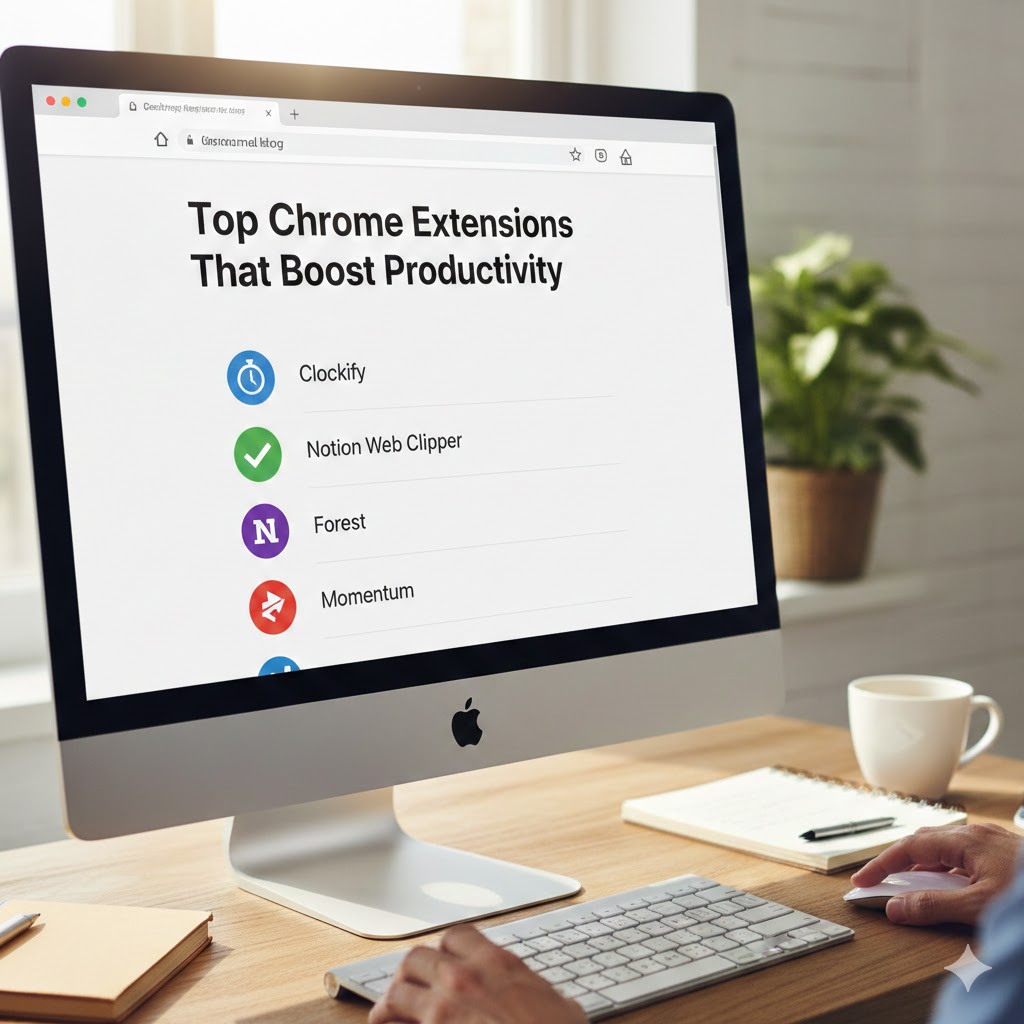
Top Chrome Extensions That Boost Productivity
In today’s fast-paced digital world, staying productive online can be challenging. Between emails, social media, meetings, and endless tabs, it’s easy to lose focus. Fortunately, your browser can become a powerful productivity hub with the right tools installed.
Google Chrome extensions are small add-ons that enhance your browsing experience and help you work smarter, not harder. Whether you want to manage time, block distractions, take notes, or organize tasks, there’s an extension designed for it.
In this article, you’ll discover the top Chrome extensions that boost productivity, save time, and make your daily workflow smoother.
Why Use Chrome Extensions for Productivity?
Chrome extensions act like personal assistants inside your browser. They automate repetitive tasks, reduce distractions, and keep important tools within reach.
Key benefits include:
Faster task completion
Better focus and time management
Organized workflow
Reduced mental clutter
Seamless multitasking
Instead of switching between apps, you can handle everything directly from your browser.
1. StayFocusd — Block Time-Wasting Websites
If social media or news sites constantly pull you away from work, StayFocusd is a lifesaver.
Key Features
Limits time spent on distracting websites
Blocks sites completely during work hours
Highly customizable restrictions
“Nuclear option” for extreme focus
This extension helps build discipline by preventing endless scrolling. Once your allotted time is used up, the blocked sites become inaccessible for the rest of the day.
Best for: Students, remote workers, freelancers, and anyone struggling with online distractions.
2. Todoist — Manage Tasks Without Leaving Your Browser
Todoist turns your browser into a powerful task manager. You can quickly add tasks, deadlines, and reminders while browsing.
Key Features
Create tasks from any webpage
Set due dates and priorities
Organize projects easily
Sync across devices
It’s perfect for capturing ideas instantly before you forget them. Instead of opening a separate app, everything is just one click away.
Best for: Professionals managing multiple projects.
3. Grammarly — Write Clearly and Confidently
Writing emails, reports, or posts every day can lead to mistakes. Grammarly helps you produce clear and error-free writing.
Key Features
Checks grammar, spelling, and punctuation
Suggests tone improvements
Works across email, documents, and social media
Enhances clarity and readability
It acts like a personal editor, ensuring your communication looks professional.
Best for: Students, content writers, marketers, and business professionals.
4. Notion Web Clipper — Save Ideas Instantly
Researching online often leads to valuable information scattered across multiple pages. Notion Web Clipper allows you to save articles, images, and content directly to your workspace.
Key Features
Save full pages or selected content
Organize into folders or databases
Access later from any device
Perfect for research and planning
Instead of bookmarking dozens of tabs, you keep everything neatly organized in one place.
Best for: Researchers, bloggers, and planners.
5. Momentum — Turn Your New Tab Into a Focus Dashboard
Every time you open a new tab, Momentum replaces it with a clean, inspiring dashboard.
Key Features
Daily goals and to-do reminders
Beautiful backgrounds
Motivational quotes
Weather updates and time display
It helps you start each browsing session with intention rather than distraction.
Best for: Anyone who wants a calm, focused workspace.
6. RescueTime — Understand How You Spend Your Time
You can’t improve productivity without knowing where your time goes. RescueTime tracks your browsing habits automatically.
Key Features
Monitors time spent on websites
Provides productivity reports
Identifies distractions
Helps set goals for improvement
Many users are surprised to discover how much time disappears on low-value activities.
Best for: People who want data-driven productivity insights.
7. Loom — Record Screen Videos Quickly
Sometimes explaining something in writing takes too long. Loom lets you record your screen, voice, and webcam instantly.
Key Features
One-click screen recording
Shareable video links
Ideal for tutorials and feedback
Saves time on meetings
Instead of typing long instructions, you can show exactly what you mean.
Best for: Remote teams, educators, and customer support.
8. OneTab — Reduce Tab Overload
If your browser is always full of open tabs, OneTab can dramatically clean things up.
Key Features
Converts multiple tabs into a single list
Saves memory and speeds up Chrome
Restore tabs anytime
Reduces clutter
This extension is perfect for people who keep dozens of tabs open for research or work.
Best for: Heavy browser users.
9. Clockify — Track Work Hours Easily
For freelancers and professionals who bill by time, Clockify is an essential tool.
Key Features
Simple start/stop timer
Track time per project
Generate reports
Helps improve accountability
You can track time spent on tasks directly from your browser without installing heavy software.
Best for: Freelancers, agencies, and remote workers.
10. LastPass — Manage Passwords Securely
Remembering dozens of passwords wastes time and increases security risks. LastPass stores and autofills them securely.
Key Features
Secure password vault
Auto-login to websites
Generate strong passwords
Sync across devices
No more resetting passwords or writing them down.
Best for: Anyone managing multiple online accounts.
Tips for Choosing the Right Extensions
Installing too many extensions can slow down your browser. Focus on tools that truly support your workflow.
Consider These Factors
Your biggest productivity challenges
Compatibility with your work style
Ease of use
Privacy and security
System performance impact
Start with two or three essential tools, then add more only if needed.
How to Use Extensions Effectively
Extensions work best when used intentionally. Simply installing them won’t magically boost productivity.
Best Practices
Review and remove unused extensions regularly
Customize settings to fit your needs
Combine tools for a complete system
Avoid overlapping features
A clean, purposeful setup delivers the best results.
Productivity isn’t about working longer hours — it’s about working smarter. The right Chrome extensions can eliminate distractions, streamline tasks, and help you stay focused throughout the day.
Whether you need better time management, task organization, writing assistance, or tab control, these tools can transform your browsing experience into a powerful productivity system.
Start with one or two extensions that solve your biggest challenges, and gradually build a setup that supports your daily workflow. Small improvements in efficiency can lead to huge gains over time.
FAQs
1. Are Chrome extensions safe to use?
Most popular extensions are safe, but always install from trusted developers and check reviews. Avoid extensions that request unnecessary permissions.
2. Do extensions slow down Chrome?
Yes, installing too many extensions can reduce performance. Keep only the ones you actively use.
3. Which extension is best for blocking distractions?
StayFocusd is one of the most effective tools for limiting access to time-wasting websites.
4. Can I use these extensions for work and study?
Absolutely. Many extensions are designed for both students and professionals to improve focus, organization, and time management.
5. Are these extensions free?
Most offer free versions with optional premium features. The free plans are usually enough for basic productivity needs.